
Every bill you add makes the numbers on every tab more accurate.
- Open the store and click Invoices in the left menu (or click Upload Invoice next to the store in the Locations list).
- Click Add Invoice.
- Drop the PDF onto the box, or click Choose PDF. Integra reads the bill and fills in the vendor, invoice number, date and charges for you.
- Check the fields. Fix anything that looks wrong, and tick any boxes that apply.
- Click Save Invoice.
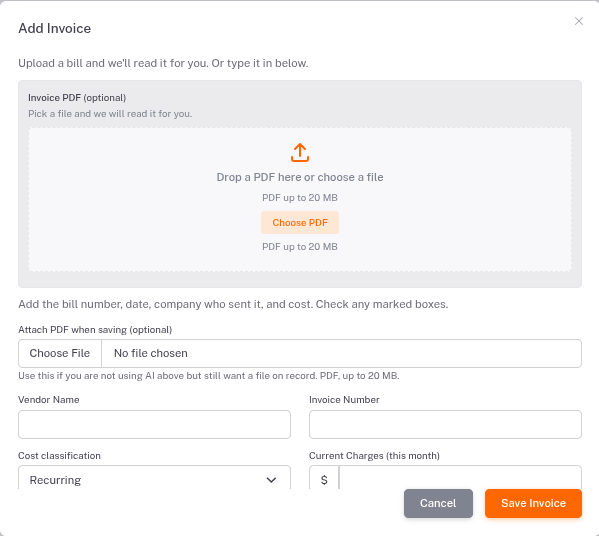
No PDF? You can type the bill in by hand in the same window.
The Invoices list
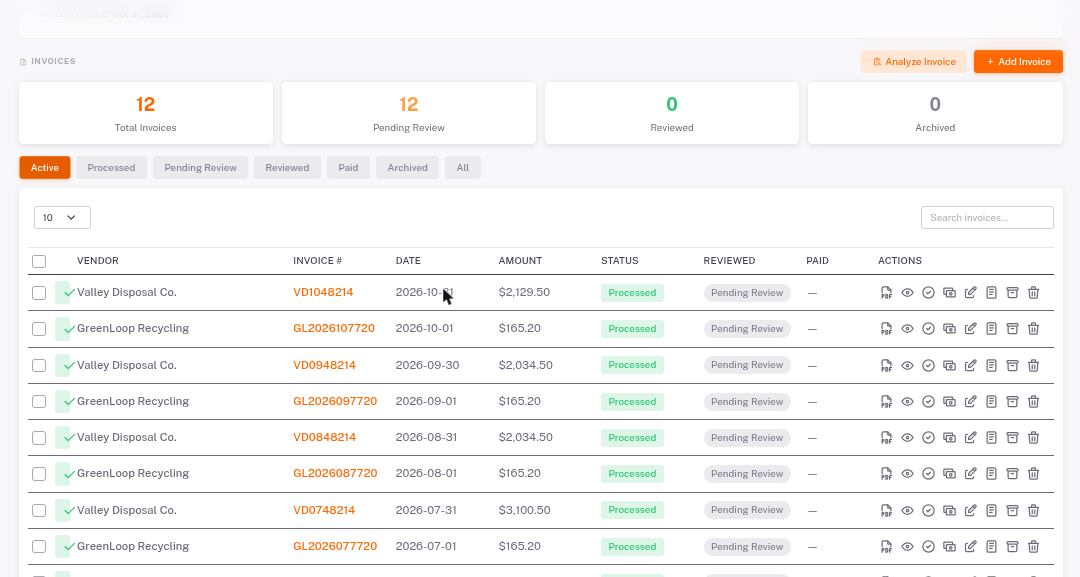
- Processed: Integra has read the bill and its charges count in your numbers.
- Pending Review / Reviewed: whether someone on your team has checked it.
- Use the icons on each row to open the PDF, view, mark reviewed, edit, archive or delete.
- Analyze Invoice re-checks the latest bill.